How to Make the Hotel Lobby AI Video: Photos, Prompts and Fixes
A practical guide to making the Hotel Lobby AI video: choosing the two photos, writing the prompt, checking the result, and fixing the most common problems.
 Hotel Lobby AI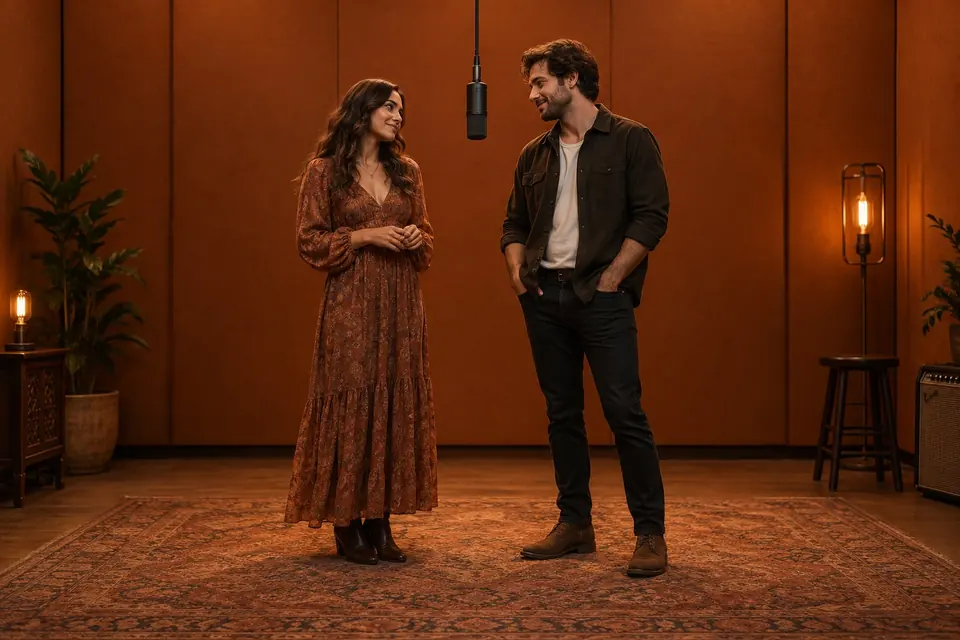
The short answer: to make the Hotel Lobby AI video, pick one clear portrait for each person, put them in an orange booth on opposite sides of one hanging microphone, and animate the scene with the original Hotel Lobby moves and audio. Hotel Lobby AI does all three in one pass: upload two photos, press Generate, and download a vertical MP4 with sound about 3–5 minutes later.
The tool does the heavy lifting, but the photos and a few small choices decide whether the result looks like your people. This guide covers those choices.
How the video is made
Every Hotel Lobby AI video is built in two stages:
- The scene. An image model places person A on the left and person B on the right inside the orange booth, with the microphone hanging between them. This sets faces, outfits and framing.
- The motion. A motion-transfer model carries the reference performance — head moves, gestures, lip-sync and audio — onto that scene.
Because the scene comes first, most problems in the final video start in the photos. Fix the inputs and the output follows.
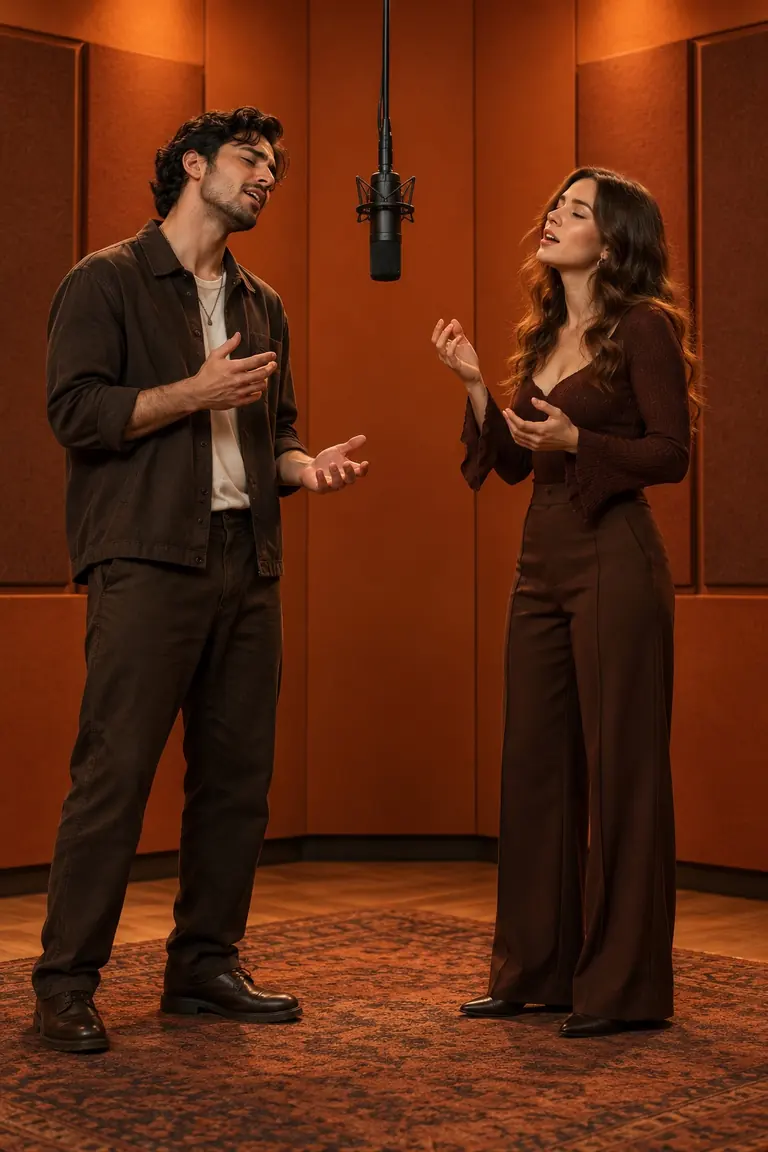
Stage one: both people in the booth, mic centered, vertical 9:16.
Step 1: Choose the right two photos
The photos set the ceiling for the whole video. A good pair has:
- A full, sharp face — no sunglasses, masks, heavy filters or hair across the eyes.
- A similar crop. Two head-and-shoulders shots, or two half-body shots. A close-up next to a full-body photo is the most common cause of one person looking oversized.
- Similar lighting and angle. Two front-facing daylight photos blend better than one selfie and one dark party photo.
- A plain background and only one person in each photo.
- A neutral or soft expression, which leaves room for the model to animate believable reactions.
Accepted formats are JPG, PNG and WebP up to 10 MB each. Only use photos you have permission to use.
Step 2: Set up the duet
On the generator:
- Person A (left) usually leads the first line; person B (right) reacts and takes the next one. Swap the photos to swap the roles.
- Framing: "Classic" (knees up) keeps faces larger and is the safer first try. "Full body" shows outfits and shoes but makes faces smaller.
- Length: 8 seconds matches the core of the performance; 15 seconds gives a longer clip and costs more credits.
Step 3: Write a short prompt (or skip it)
The base prompt already fixes the booth, the centered mic, the vertical frame and left-right placement. The styling note is only for one extra detail. Good examples:
- "Both wearing black sunglasses."
- "Matching white T-shirts."
- "Person A in a red jacket."
If you use a general AI video tool instead, you need the full shot list. This is the starter prompt we use:
Two people from my two reference photos perform a duet in a seamless burnt-orange recording booth. Person A (photo 1) stands on the left, Person B (photo 2) on the right, facing each other across one black microphone hanging at face level in the exact center. Vertical 9:16, static centered camera, soft even studio light, framed from the knees up. Keep each face, hairstyle and outfit unchanged. No side swaps, no extra people, no captions, no watermark.
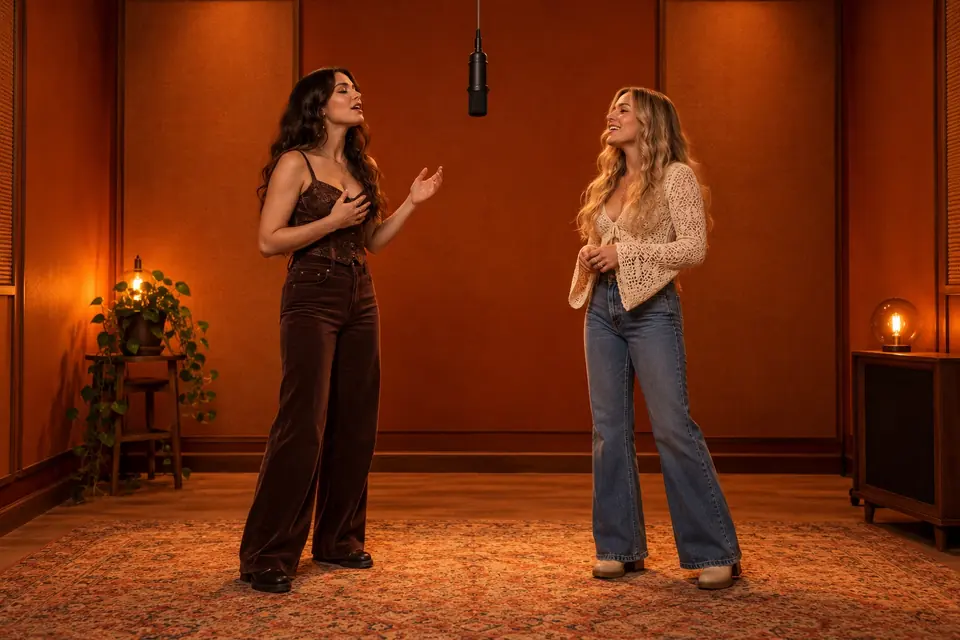
Matching crops and lighting keep both people the same scale.
Step 4: Generate and review
Press Generate. The scene appears in under a minute, and the animated video follows in about 3–5 minutes. You can close the tab; finished videos are saved to My videos.
Before you post, check:
- Identity: does each face still look like the person in the photo?
- Placement: A stays left, B stays right, the mic stays between them.
- Hands and extras: no warped fingers, merged faces or extra people.
- Sound off: watch once muted — the handoff should still read clearly.
Common problems and fixes
| Problem | Likely cause | Fix |
|---|---|---|
| Face doesn't look like the person | Small, blurry or filtered face in the photo | Use a sharper, front-facing photo with the face filling more of the frame |
| One person looks much bigger | Close-up mixed with a full-body photo | Crop both photos to the same framing |
| People swap sides | Photos uploaded to the wrong slot | Put the lead on the left (A) and try again |
| Outfit changes mid-clip | Busy styling note or cropped clothing | Shorten the note to one detail; show more of the outfit |
| Generation failed | Provider error or rejected photo | Credits are refunded automatically — retry, or swap the photo |
Change one thing at a time between tries, so you know what fixed it.
FAQ
Do I need CapCut to make the Hotel Lobby AI video? No. The video is generated on Hotel Lobby AI with the audio already included. You can still edit it in CapCut afterwards if you want captions.
Can I make it with a photo of me and a celebrity? Only use photos of people who have given you permission. Celebrity likenesses can break platform rules and the person's rights.
Can I use a pet or a cartoon character? The tool is tuned for two real people. Pets and drawings may work but are less reliable.
How much does it cost? Each video uses credits; the exact number is shown on the Generate button and in the pricing section. Packs are one-time, with no subscription required.
What's the difference between this and the "AI trend Hotel Lobby" guide? That guide explains the trend and the fastest way to join it. Read How Do You Do the AI Trend Hotel Lobby? for the background.
Got your two photos? Make your Hotel Lobby AI video now.